Support
Answers first. If you still need us: support@aiBuds.ai — we reply by email, usually within one business day.
Getting started
First useTake the earbuds out of the case, peel the insulation film from the bottom of the stems, put them back in the case, and charge the case if it is empty. Then install the app at aiBuds.ai/start.
PairingOpen the case near your phone. In Bluetooth settings choose aiBuds, then open the aiBuds app and follow the pairing screen. No account is needed. One phone at a time: forget the earbuds on the old phone before pairing a new one.
The appThe aiBuds app is on Google Play and the App Store. It handles translation, AI features, and control settings. Scan the QR in the box or on the Quick Start Guide — both point to aiBuds.ai/start.
Translation & AI
Which translation mode do I use?Call — both sides hear their own language; only one side needs aiBuds. Share — one bud each, face to face. Travel — hands-free through your phone. Open the app → Translate → pick the mode.
Do I need an internet connection?Yes. AI and translation features run through the aiBuds service, so your phone needs Wi-Fi or mobile data. A free tier is included with every pair.
Assistant, Email Summary, Morning BriefTap each one on the app’s Home screen. Email Summary and Morning Brief work with a Microsoft account (Outlook.com or Microsoft 365) today; Google accounts are coming. Both need your aiBuds earbuds connected. Your mail and calendar are read and summarized on your phone and are never kept by aiBuds; you can disconnect at any time from the same screen.
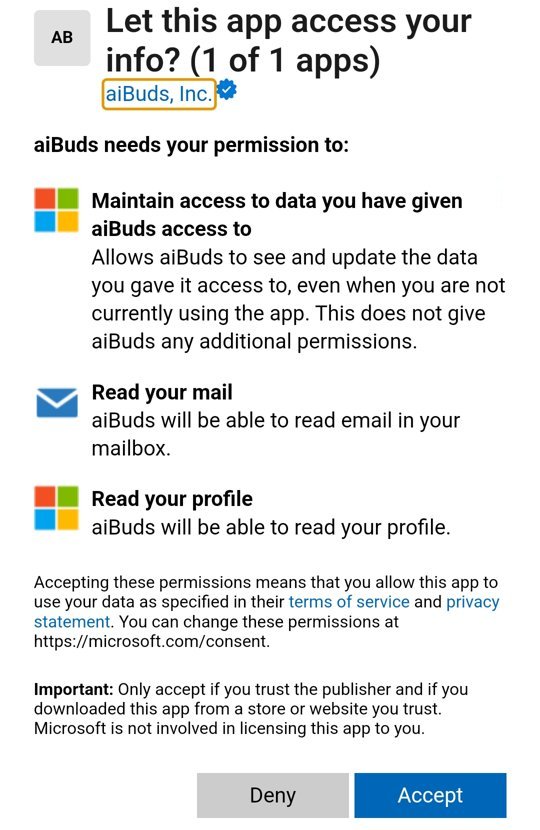
Connecting Outlook: what Microsoft shows youWhen you tap Connect Outlook, Microsoft asks you to sign in and then shows “Let this app access your info?”. Check that the publisher reads aiBuds, Inc. with Microsoft’s blue verified badge, then tap Accept. aiBuds asks once for read-only access to your mail and calendar, used for both Email Summary and Morning Brief. Work or school accounts may need your IT team’s approval first. To remove access later: account.live.com/consent/Manage (personal) or myapps.microsoft.com (work or school).
Troubleshooting
Only one earbud connects / sound on one sidePut both earbuds in the case, close the lid for ten seconds, open it, and reconnect. If it persists, reset: with the case open, long-press the Reset/Display button on the case (this resets the earbuds and drops all connections), forget “aiBuds” on your phone, then pair again.
Earbuds won’t charge or won’t turn onCheck that the film has been removed from the stems and the charging contacts are clean and dry. Charge the case with the supplied cable for at least 30 minutes before trying again.
Reading the case displayThe case shows three percentages: left earbud, case, right earbud. A short press of the Reset/Display button wakes the display. The middle number flashes while the case is charging; the earbuds charge from the case whenever they are docked.
WaterThe earbuds are IPX5 (sweat and splash resistant). The charging case is not water resistant — dry the earbuds before docking them.
Warranty & service
aiBuds hardware is covered by aiBuds, Inc.’s Limited One (1) Year Warranty from the date of original retail purchase, against defects in materials and workmanship under normal use. Keep your proof of purchase. Normal wear (ear tips, battery capacity decline within specification), accidental or liquid damage, unauthorized modification, and products bought from unauthorized sellers are not covered. If a covered defect appears, aiBuds will repair or replace the product at its option. This warranty gives you specific legal rights; you may also have other rights that vary by state.
How to get serviceEmail support@aiBuds.ai with your proof of purchase, the product (aiBuds or aiBuds Core, and color), and a short description of the problem. We will send RMA instructions; shipment to the service location is the purchaser’s responsibility unless we say otherwise, and return shipment is on us.
Find your serial numberYour aiBuds serial number (SN) is on the label on the box, and in the app under About. Have it ready when you write to us — it is how we look up your warranty.
Buying safelyWarranty applies to products bought from aiBuds or an authorized reseller. If you are unsure whether a seller is authorized, ask us before you buy.
Contact
support@aiBuds.ai for product and order help · press and partnership contacts.